Internal Communications
Standardize company media formats
Keep recordings compatible across browsers and collaboration tools.
Convert WebM videos to universally compatible MP4 format. Runs in your browser — your files stay on your device.
Drop your WebM file here or click to browse
Max file size: 200 MB
HighReach
Turn ideas, images, and clips into professional-quality videos in minutes.
Get Started For FreeNo credit card required
Click the upload area or drag and drop your WebM video. Max file size is 200 MB.
Click Convert and your WebM will be re-encoded to H.264 MP4 format.
Save the MP4 file. Compatible with all browsers, social media, and video editors.
Webm To MP4 helps normalize media files for editing, social uploads, and storage efficiency across teams and devices.
| Profile | Resolution/Format | Typical Size | Best For |
|---|---|---|---|
| Compact | 360p-480p / MP4 | ~5-20 MB/min | Draft review and fast sharing |
| Balanced HD | 720p / MP4 | ~20-45 MB/min | Cross-platform social publishing |
| Full HD | 1080p / MP4 | ~45-90 MB/min | Editing source and quality archives |
| Audio Export | MP3/M4A/WAV | ~1-10 MB/min | Podcasts and voice extraction |
Result size depends on duration, bitrate, frame rate, and source complexity.
Internal Communications
Keep recordings compatible across browsers and collaboration tools.
UGC Teams
Give editing teams clean and consistent source assets.
Creators
Convert and compress videos for Shorts, Reels, TikTok, and landing pages.
Marketing Teams
Deliver separate files for paid social, organic feeds, and website embeds.
Archivists
Compress legacy assets while maintaining acceptable playback quality.
Agencies
Build repeatable conversion presets for recurring campaign work.
Social Teams
Compress files to platform-friendly sizes while keeping content sharp.
Sales Teams
Create lightweight versions for email and messaging workflows.
Optimization Playbook
Use these webm to mp4 optimization tactics to improve consistency, output quality, and execution speed.
Lower bitrate gradually and compare quality before final export.
Batch similar tasks to reduce setup time and improve consistency.
Keep MP4 versions for both edit masters and lightweight uploads.
Use MP4 (H.264/AAC) for broad playback compatibility.
Run multiple variants and compare before publishing one output.
Save your best-performing patterns as reusable templates.
Keep source files or original inputs before making final edits.
Normalize audio levels when extracting voice tracks.
Perform a quick QA pass for accuracy, tone, and compliance before release.
Match frame rate to source to reduce sync issues.
Try these solutions:
Processing happens server-side for reliable performance on modern desktop and mobile browsers.
Desktop Browsers
Mobile Browsers
Your Privacy Matters: We process inputs to generate outputs and do not require social or platform account credentials for standard tool usage.
Secure by Design: Connections use SSL/TLS encryption and tool processing runs through secure infrastructure.
Legal Responsibility: Use each tool only for lawful workflows and for content/data you are authorized to process under applicable regulations and platform terms.
DISCLAIMER OF LIABILITY: This service is provided as-is without warranties. Users are solely responsible for lawful usage and authorization of all processed content.
Webm To MP4 is a free online tool built to streamline Webm workflows with fast, practical outputs for creators, marketers, and operators.
Learn how to generate better ads with AI using practical examples, optimization frameworks, and campaign testing playbooks.
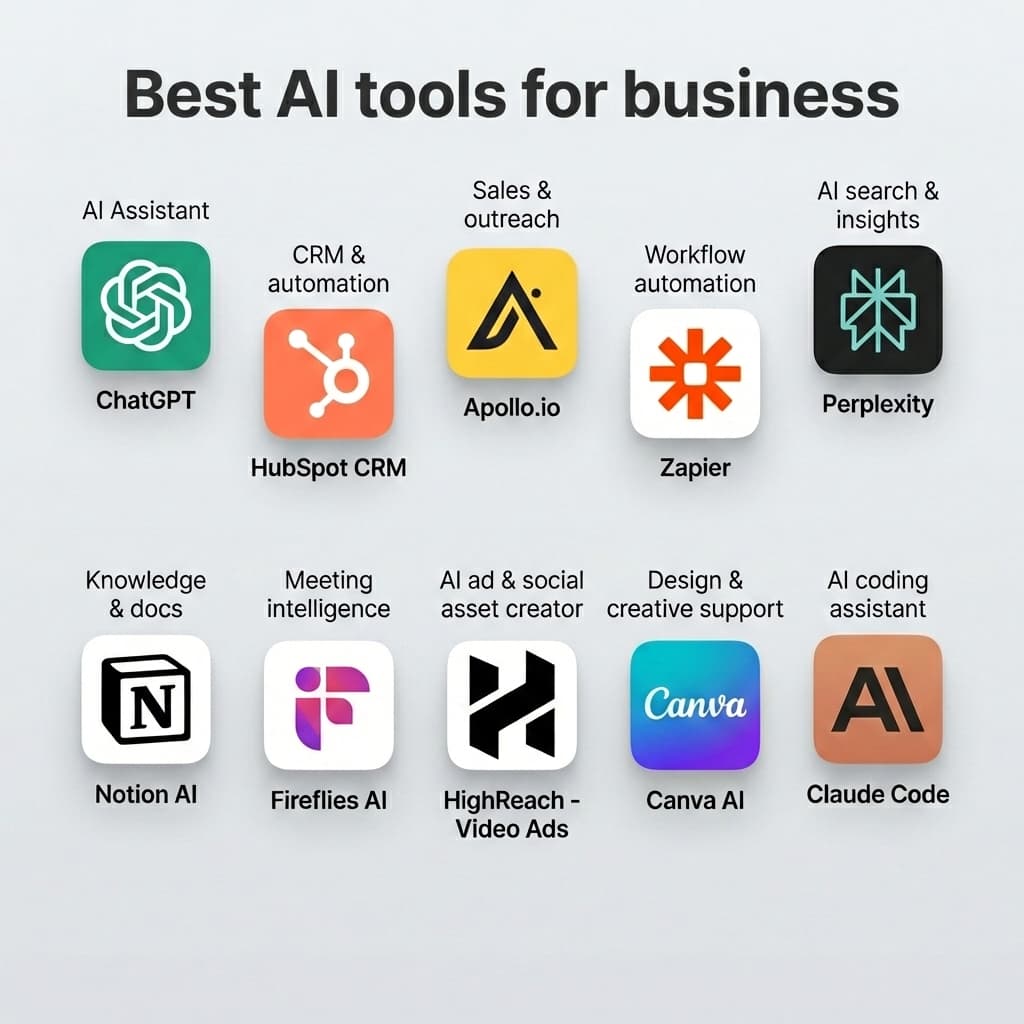

Complete 2026 Guide (Examples, Templates, Tools)
Read article


Explore more HighReach studio tools across video, image, avatar, and audio creation.

Create, edit, lip-sync, and direct motion-rich videos from one workspace.
Open tool
Generate, expand, edit, and upscale campaign-ready images in one place.
Open tool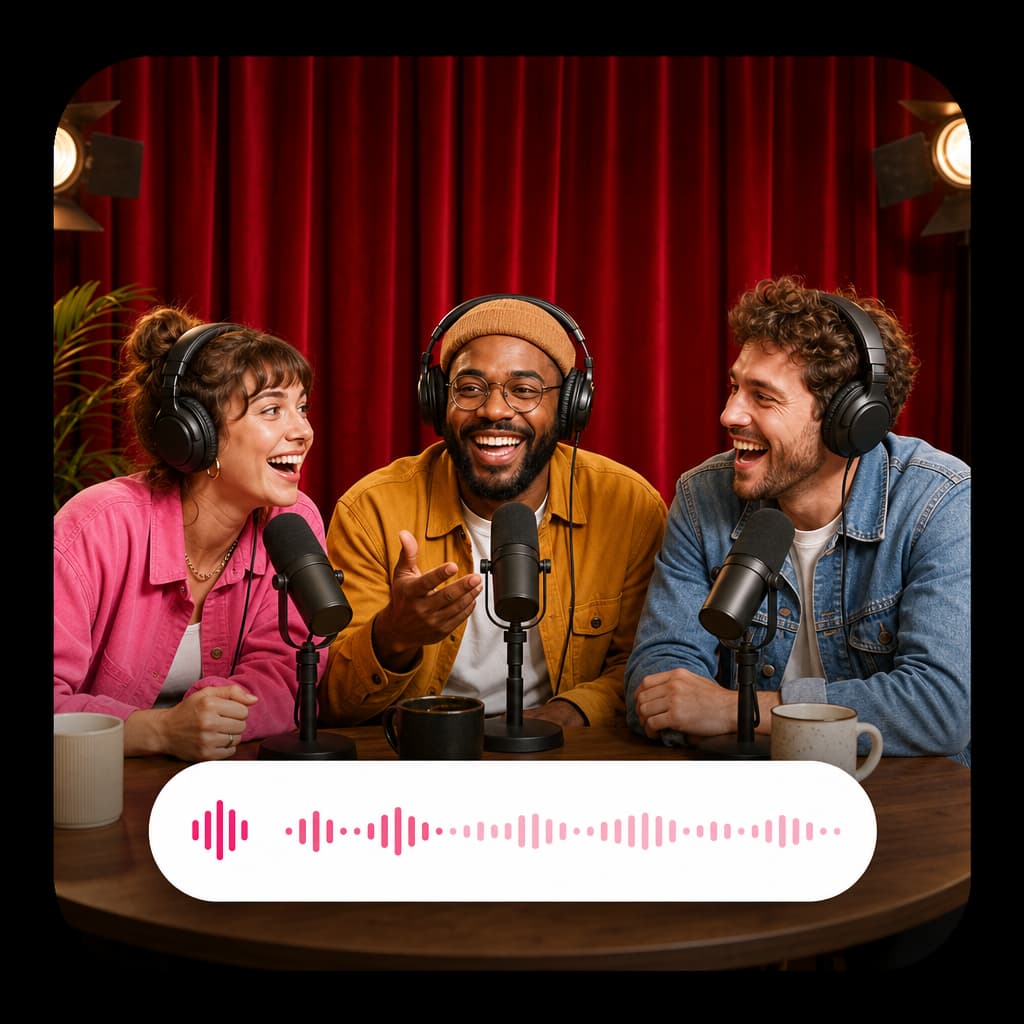
Create voice overs, music, dubbing, and sound effects without leaving the studio.
Open toolAnimate product shots, references, and still frames into polished short clips.
Open tool
Generate fresh video scenes directly from prompts and style direction.
Open tool
Re-render existing clips with prompt-based changes and creative direction.
Open tool
Swap the on-screen subject while keeping motion, camera, and scene structure.
Open tool
Turn a speaker image plus audio into a talking-avatar or presenter clip.
Open tool
Drive motion from reference footage for controlled, repeatable outputs.
Open tool
Generate product visuals, editorial images, and concept frames with AI models.
Open toolPrompt-edit one image into multiple refined creative variations.
Open toolGenerate studio-ready narration for explainers, promos, and product videos.
Open toolGenerate image, video, and UGC ads in minutes with HighReach.
No credit card required